Connect Claude or ChatGPT
Work with your documents in Claude or ChatGPT, alongside the context it already has from your chats and files, in the folders you choose and never beyond your own access.
A connected app is Claude or ChatGPT reading Final Wording with your access: you ask it to find the contracts with a given clause, read a document or one of its earlier versions, or say which version is approved, and it answers from the folders you picked. This guide connects either app, explains what the folder picks allow, and covers changing and ending the connection.
Connected apps are off until a workspace admin allows them; see For workspace admins.
Connect Claude
On your Profile, under Connected apps, choose Add to Claude. Claude
opens its own Add custom connector dialog with the name and the address
already filled in. Choose Continue if Claude shows it, leave the sign-in
settings it detects as they are, and choose Add. To add it by hand instead,
open Customize → Connectors in Claude, choose Add → Add custom
connector, and enter the name Final Wording and the address
https://app.finalwording.com/mcp.
Then choose Connect on the new connector. Claude opens the connect page in Final Wording, where you choose what it may reach.
On a Claude Team plan, only an Owner can add a custom connector; on Enterprise, so can members whose custom role includes Manage access to Libraries. They add Final Wording once under Organization settings → Connectors, and each person then connects it under Customize → Connectors. Claude’s Free plan allows one custom connector.
Connect ChatGPT
ChatGPT calls these apps plugins. Steps for ChatGPT on your Profile shows the same connection steps, with the address ready to copy.
- Open chatgpt.com/plugins and choose Add.
- Choose Add custom MCP server.
- Enter the name Final Wording and the address
https://app.finalwording.com/mcp. For the icon, use our app icon (PNG, 256 × 256). - Set Authentication to OAuth.
- Tick I understand and want to continue, and choose Create as a plugin.
- Confirm ChatGPT’s own consent sheet. ChatGPT opens the connect page in Final Wording.

This works on ChatGPT Pro. On ChatGPT Business, only your organisation’s ChatGPT admins and owners can add a custom server; on Enterprise or Edu, they can also allow chosen members. Usually an admin adds Final Wording with the steps above and publishes it for everyone. It then appears among your apps in ChatGPT, marked custom, and connecting it opens the connect page. Your admins also choose which of its actions ChatGPT may use.
Choose what the app may reach
The connect page names the app and the address it returns to, for example “Returns to claude.ai”. Continue only if you started the connection yourself.
Choose the workspace, then pick folders and give each one Read or Read & write. Nothing is picked to begin with.
- Read lets the app list and search the folder’s documents and read them, the latest saved version or an earlier one, with their public notes. It also sees who saved each version and which one is approved or published.
- Read & write also lets the app edit an existing document in the folder. It works in a separate draft held by Final Wording; submitting the draft saves a new version with a summary of the changes. It is offered only where you can edit.
- A pick includes its subfolders, also ones added later. Top level is the whole workspace, including documents outside any folder.
- A pick inside another pick decides for its own folder: with Top level at Read, Read & write on one folder sets only that folder apart.
Give broad Read, so the app has the context it needs, and keep Read & write for the folders you would let it change.
A separate draft lasts seven days from when it is opened; editing does not extend that deadline. You can have 16 open drafts per app connection. Saving or discarding one frees a slot. An app can edit existing documents, but creating a document, creating one from a template, inserting approved wordings, and writing comments or suggestions are not supported.
Ask for a free PDF preview to check layout. Ask for a final PDF only when you need the final file: generating a new final charges the workspace. A repeat with the same saved version and values returns the stored file without another charge.
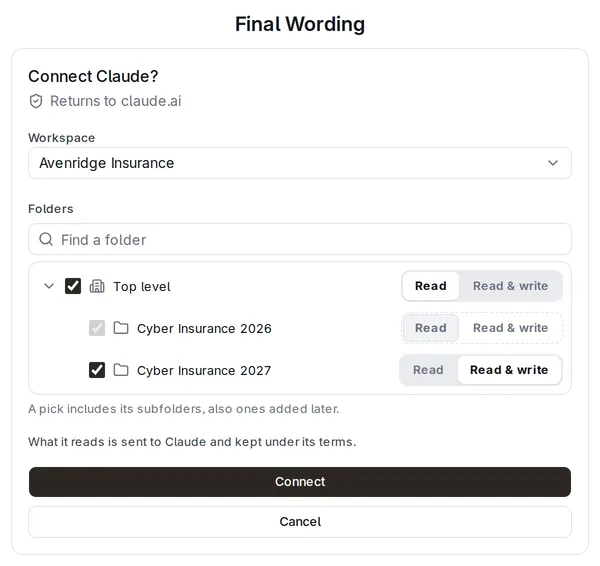
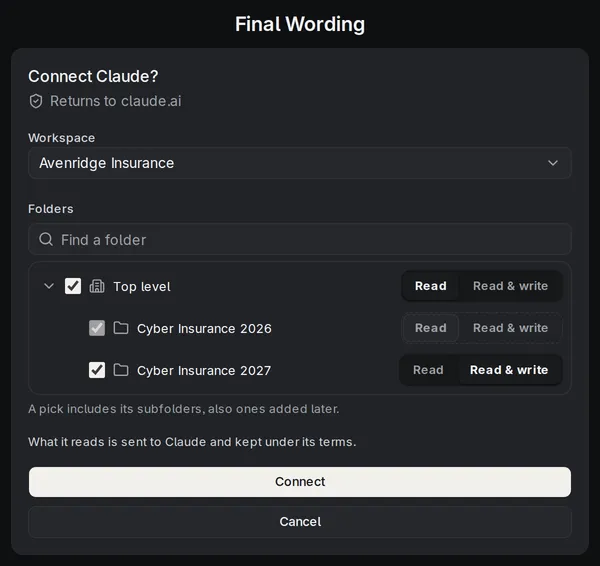
Choose Connect, and you are back in the app. Whatever you picked, an app cannot share, move or delete a document, publish it, or submit it for approval or approve it; those stay with you.
On every request, the app gets the lower of your own access and your pick, so it loses a folder the moment you do. Each request it makes is recorded with your name and the app. What it reads is sent to the app’s provider and kept under its terms.
Change what the app may reach
Your Profile lists each connected app under Connected apps, with its workspace, its folders, and when it was connected and last used.
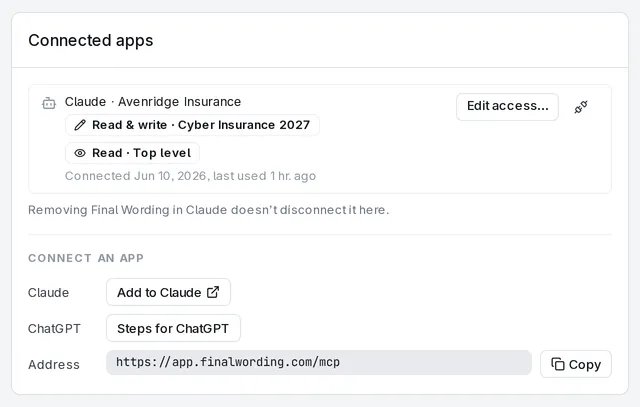
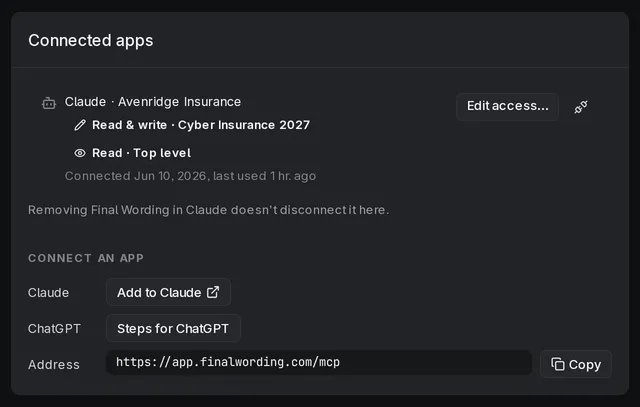
Edit access… opens the same folder picker with the current picks. Save access applies from the app’s next request; you don’t need to connect again. At least one pick has to stay: to end all access, disconnect.
Disconnect
On your Profile, choose the disconnect button beside Edit access…, then Disconnect. The app loses its access with its next request. To use it again, connect it again from the app.
Removing Final Wording in ChatGPT also ends the connection in Final Wording. Removing it in Claude does not: the connection stays on your Profile, with its access, until you disconnect it there as well.
An app is also disconnected when it goes unused for 90 days, and when you are made a guest, disabled or removed from the workspace, or your account is recovered. It doesn’t come back by itself; connect it again from the app.
For workspace admins
Connected apps are off until a workspace admin turns on Allow connected apps under Workspace settings → AI → Connected apps. The same page lists every member’s connections with their folders, and you can disconnect each one there; the member isn’t notified and can connect again.
Turning connected apps off stops every app at its next request but keeps the connections, which work again once connected apps are allowed.
When it will not work
If your Profile shows neither Add to Claude nor Steps for ChatGPT, connected apps are off in every workspace where you are a member, or you are a guest there. A connection marked Off in this workspace is paused because a workspace admin turned connected apps off.
If the connect page says connected apps are off in your workspace, a workspace admin has to allow them first. If it lists no workspace at all, you are not an active member of one that can connect: guests cannot connect apps.
On a folder where you cannot edit, Read & write is greyed out and the folder says “You can’t edit here.” Ask for edit access to the folder, not for a different pick. If it is greyed out on every folder, you may not be an author in the workspace; a workspace admin can make you one.
An app cannot read a template whose text needs values; it says so instead. Claude refuses a second connector with the same address, so in Claude you connect one Final Wording workspace. And once you disconnect Claude here, it asks to reconnect on its next request; reconnecting takes you through the connect page again.